PDF Reader - Editor & Viewer
- 4.4
- Rating
- 10.00M
- Installs
- Free
- Price
 Analysis by App-foxy
I spent time with PDF Reader - Editor & Viewer as a practical document tool rather than treating it as just another file opener. It is a free Android app from Eternal Mobile Labs, placed in the Tools category, and its main appeal is straightforward: it brings PDF reading together with document handling for DOC, Excel, and PowerPoint files. That makes it useful when I want one place to inspect several common office formats without switching between multiple apps.
My overall impression is positive but measured. The app is easy to understand, supports a useful range of file tasks, and can be especially convenient on a phone when I need to check a document quickly. At the same time, it is not a complete replacement for a desktop office suite, and some users will find the experience less comfortable for long reading sessions or detailed editing. Its value depends heavily on whether you need a compact viewer and basic PDF management, or a full professional document workspace.
How well the app handles readability and navigation
The first thing I look for in a document app is whether I can reach a file quickly and read it without fighting the interface. Here, the experience is centered on finding documents stored on the device and opening them in a familiar viewer. That sounds basic, but it matters: a PDF tool becomes frustrating when the file list is confusing or when opening a document involves too many unnecessary steps.
You May Also Like

 Blood Strike: 2.5 Anniversary
Blood Strike’s Loadouts Turn Every Drop Into a Tactical Gamble
A close look at Blood Strike’s custom loadouts: how fast access to signature weapons reshapes its battle royale rhythm, rewards preparation, and narrows the gap between fights.

 Pandora - Music & Podcasts
Pandora’s Music Is Easy to Start, but Harder to Recover
Pandora’s strength is its low-effort path from a seed to a station. Its weak spot is how much confidence it asks you to place in connection, setup, and quiet recovery.

 8 Ball Pool
 Is Built on Rivalries, Rematches, and Routine
A close look at the rivalries, rematches, shared routines, and unanswered safety questions that turn a quick pool match into a persistent mobile community.

 Samsung Music
’s Quiet Strength Is Playing What You Already Own
Its reach comes less from spectacle than from dependable access to a personal library. That simplicity is both the app’s strongest retention engine and its ceiling.

 AccuWeather: Weather Radar
AccuWeather Review: A Quick, Clear Forecast for Everyday Decisions
For everyday plans, the best forecast is the one you can understand quickly. AccuWeather makes rain timing, radar, and local conditions easy to act on, with a few trade-offs.

 Hill Climb Racing
Why Hill Climb Racing Still Turns Crashes Into One More Run
A tiny car, a bumpy hill and one more upgrade: Hill Climb Racing keeps resurfacing because its simple chaos makes every near-miss feel personal.
More From Our News Desk



For ordinary reading, the app is at its best with short forms, receipts, manuals, tickets, school handouts, and work documents that I only need to consult. I can use a phone screen to check a page, move through the document, and return to the file list when I am done. The broad format support is also helpful because a shared folder may contain a PDF beside a DOC file or a presentation, and I do not always want to decide which separate app should handle each one.
One practical habit improves the experience: I treat the file list as a temporary work queue. Instead of leaving every downloaded document mixed together, I first identify the files I actually need, open them one at a time, and remove or relocate clutter later using the phone’s normal file manager. This keeps the reader focused on viewing rather than turning it into a substitute for complete storage organization.
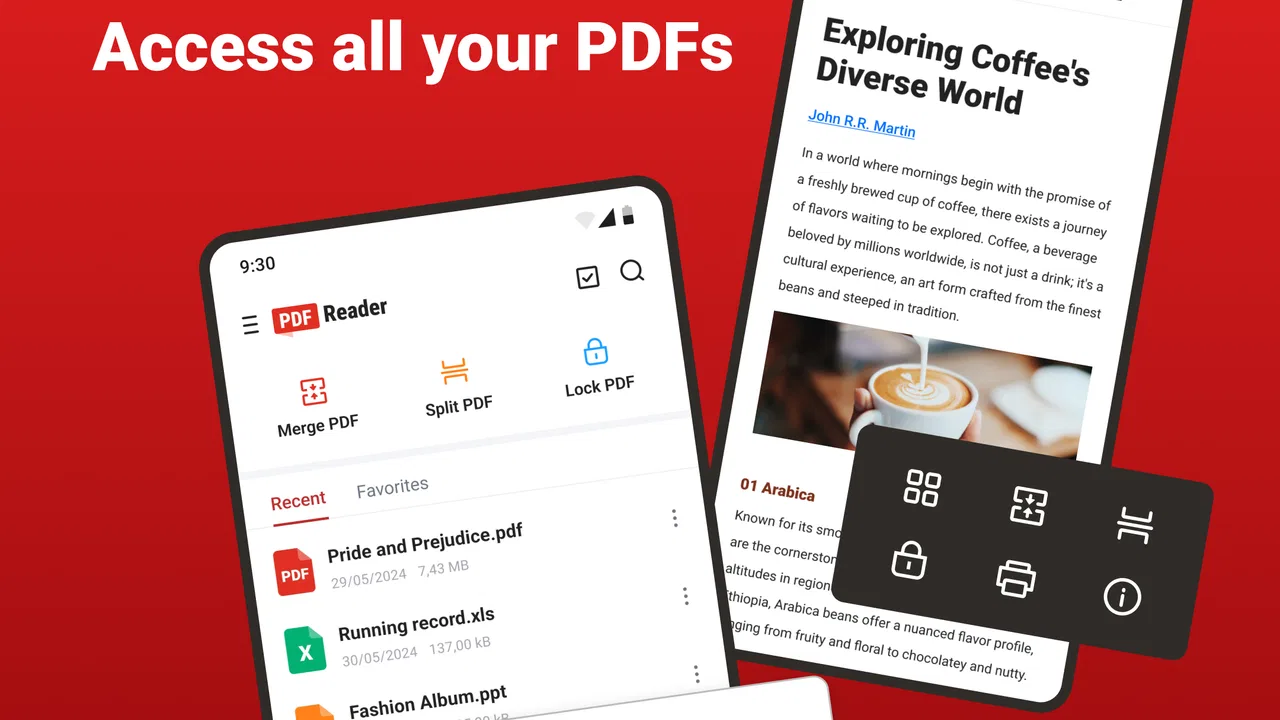
The app’s PDF management tools give it more usefulness than a basic viewer. Splitting a PDF can be handy when I need to send only selected pages from a larger document. For example, if a landlord, school, or office asks for one section of a form, creating a smaller file is more practical than sending the entire document. I would still check the resulting file before sharing it, especially when page order and completeness matter.
That workflow is one of the app’s less obvious strengths. A person who receives a long document on a phone can separate the relevant pages before forwarding them, without first moving to a computer. It is not the same as advanced PDF production, but it solves a common everyday problem: reducing a document to the part another person actually needs.
Readability depends on the original file as much as on the viewer. A clean, digitally created PDF is generally easier to inspect than a scanned page with tiny text or uneven contrast. I would not expect a reader app to repair a badly scanned document automatically. When a page is dense, I zoom in and move across it rather than trying to read the whole layout at once, which is workable for checking details but less pleasant for extended study.
This is where the difference between occasional access and serious reading becomes important. On a larger screen, a document can retain more of its layout and require less panning. On a phone, the same file may demand repeated zooming, especially if it contains tables, columns, or small footnotes. The app lets the phone serve as a useful emergency reader, but the screen size remains the limiting factor.
I also see a distinction between navigation and comprehension. Opening a PDF is only the first step; finding a specific clause, figure, or page is the real test in many situations. The app is most comfortable when the document is short or when I already know where the information is. For lengthy reports, I would prefer a reader with particularly strong search, bookmarks, annotation, and navigation tools, because those features reduce the mental effort of returning to important sections.
Useful format coverage, with realistic expectations
The ability to read PDF, DOC, Excel, and PowerPoint files gives the app a practical place in a mixed-document routine. I can imagine using it after downloading an invoice, opening a text document from a messaging app, checking a spreadsheet attachment, and viewing a presentation while away from a desk. That flexibility is more valuable than a narrow PDF-only tool when the main need is quick inspection.
However, viewing different office formats does not automatically mean that every layout will appear exactly as it does in the original desktop application. Spreadsheets can be especially challenging because wide columns, formulas, multiple sheets, and print settings do not naturally fit a small display. Presentations may also be easier to inspect than to evaluate carefully if the design depends on large visuals or precise placement.
My advice is to use the app for confirmation and access, not as the only place where important formatting is judged. If a document is going to be printed, submitted, or edited extensively, I would open it in the program that created it or in a full office suite as well. That is not a criticism unique to this app; it is a sensible boundary for mobile document viewers.
Motor, sensory, and situational access in everyday use
For people with different abilities, a useful question is not simply whether an app opens a file, but how much effort it takes to perform the whole task. Reading, zooming, selecting a file, splitting pages, and managing the result can place different demands on vision, touch accuracy, attention, and patience. In my experience, this app is most accessible when the task is short and clearly defined.
Someone with limited hand precision may find repeated small touch targets or frequent page adjustments tiring. A phone reader naturally involves tapping, swiping, and sometimes pinching to zoom. Those gestures can be manageable for a quick document check but more demanding during a long session. I would use the device’s own display scaling and touch settings where available, and I would avoid attempting complex document preparation when I am working under time pressure.
Users with low vision may benefit from enlarging the page and using the phone’s built-in display features, but the result will depend on the source document. A large, well-structured PDF is much easier to read than a scanned image or a page with pale text. Enlarging a page can also mean more horizontal and vertical movement, so bigger text does not always produce a simpler experience. I found it helpful to decide whether I need to read continuously or only locate one detail before choosing how far to zoom.
For sensory comfort, a short viewing task is less demanding than a long document session. Bright screens, dense pages, and constant panning can create fatigue even when the app itself is functioning correctly. I would use the phone’s normal brightness and color settings to suit the environment, and I would choose a larger screen whenever the document contains tables or multiple columns. These adjustments are practical, but they do not turn a phone into an ideal reading surface.
People who rely on spoken feedback should evaluate the app with the accessibility tools already built into their device. The important point is that a PDF’s internal structure affects how useful spoken navigation can be. A properly tagged text document may be easier to move through than a scanned page that behaves like one large image. I would not assume that opening a file guarantees a smooth spoken reading experience; the document’s design remains a major factor.
A realistic scenario is a commuter who receives a multi-page travel or employment document while away from home. The person may need to check one date, split out a page, and forward it before reaching a computer. This is where the app makes sense: the task is focused, the phone is already available, and the benefit comes from reducing the number of steps between receiving and using the file.
Another scenario involves a caregiver or family member helping someone review paperwork. The app can provide a convenient way to open several file types on one device, while zooming and screen settings can be adjusted for the reader. I would still keep the original file untouched and create a separate copy before splitting or sharing anything. That small precaution prevents an accidental change to the document that needs to be preserved.
Situational access also includes poor connectivity, although document handling depends on how the file reached the device in the first place. Once a document is available locally, a viewer is useful in places where opening a browser-based office service would be inconvenient. This makes the app appealing for travel, waiting rooms, classrooms, or workplaces where I simply need to inspect a saved attachment rather than build a complete online workflow.
On the other hand, a phone is not always the most inclusive device for the job. If I need to compare two pages side by side, read a long report for an hour, or edit a complicated spreadsheet, a tablet or computer is usually kinder to my eyes and hands. The app can extend access to documents, but it cannot remove the physical limits of a small display or the effort involved in touch-based navigation.
Where the convenience starts to run out
The main limitation is scope. PDF Reader - Editor & Viewer is useful as a mobile document utility, but I would not choose it as my main professional editor for contracts, publishing work, advanced spreadsheets, or presentation design. The store positioning emphasizes reading, viewing, splitting, and managing files, so I approach it as a practical access tool rather than a deep creation environment.
There is also a difference between splitting a file and fully controlling its contents. Someone who needs detailed annotations, sophisticated form workflows, redaction, document comparison, or precise layout changes may quickly reach the edge of what a lightweight mobile reader is comfortable doing. In those cases, a dedicated PDF editor or the original office application is the better choice.
Cost is another point worth considering. The app is free to install, but it includes in-app purchases ranging from $3.99 to $89.99 per item. That wide range means I would inspect the purchase screen carefully before committing to anything and decide whether the functions I need are available without payment. A free download is convenient, but it should not be confused with unlimited access to every possible tool.
The app is rated for Everyone, which makes it broadly suitable from a content-rating perspective. That does not mean every document will be suitable for every reader, nor does it guarantee that each file will be easy to navigate with every accessibility setup. The experience is shaped by the document itself, the phone’s screen, and the user’s preferred input and reading methods.
Performance expectations should also stay realistic. The current version is 4.1.7, and the app runs on Android 8.1 or later, giving it a reasonably broad place among Android devices that are still in use. Even so, large files, image-heavy scans, or complicated office layouts are more demanding than a simple text PDF. I would test an important file before relying on the app during a deadline, particularly if the document must be split or shared immediately.
The app’s audience size suggests that it has found a practical role: it has passed 5 million installs and holds a 3.8 average from around 12 thousand ratings. I read that as evidence of broad usefulness rather than a guarantee of a perfect experience. The rating feels consistent with a tool that solves common viewing needs but may leave advanced users wanting more control or a smoother workflow.
Compared with a browser-based office service, this app feels more direct for opening a file already on the phone. A browser solution may be stronger for collaboration, cloud storage, and editing across devices, but it can introduce extra sign-ins and a more complicated path to a quick document check. Compared with a dedicated PDF specialist, this app’s advantage is its broader office-format coverage and simple mobile purpose; the specialist is likely preferable when PDF editing is the central job.
Compared with the default document viewer that may already be installed on an Android phone, the deciding feature is the combination of formats and PDF management. If I only need to open an occasional PDF, the built-in option may be enough and avoids adding another app. If I regularly receive mixed attachments or need to separate pages, this tool becomes easier to justify.
I would also avoid using it as the sole archive for important records. A viewer can help me inspect and prepare files, but long-term organization is better handled through a dependable file-management or cloud-storage routine. I keep original documents in a clearly named folder, work on copies when possible, and verify the output after splitting. That workflow protects against confusion when several versions of the same form are on the phone.
Who should use it and who should choose something else
I would recommend this app to students checking handouts, workers reviewing attachments, families handling forms, and travelers who need a compact way to open common office files. It is particularly useful for people who value convenience over a large editing toolbox. The free entry point also makes it easy to try before deciding whether its document features fit a regular routine.
I would be more cautious for users who need reliable long-form reading, extensive annotations, complex spreadsheet work, or careful accessibility support across many types of PDFs. Those users should compare it with a dedicated reader, a full office suite, or a larger-screen workflow. The app may still be useful as a backup viewer, but it should not be expected to replace a specialized tool.
My best tip is to separate “read now” tasks from “edit seriously” tasks. Use this app when the goal is to locate information, inspect an attachment, or split a few pages for sharing. Move to a more specialized application when the document needs structural changes, collaborative review, or exact visual control. That distinction saves time and prevents disappointment.
Another helpful habit is to check the output immediately after a file operation. Open the new PDF, confirm the page order, and make sure the selected content is present before sending it to someone else. This is especially important when the original document contains forms, signatures, or pages that refer to one another. A quick review is faster than correcting a missing page later.
For people who need a more comfortable reading experience, I would pair the app with a tablet, an adjustable stand, and the device’s own display or spoken-feedback settings. The app handles the document, while the device setup handles much of the physical interaction. This combination is more realistic than expecting the application alone to solve every readability or motor challenge.
After using it, I see PDF Reader - Editor & Viewer as a capable everyday document utility, not a full office replacement. Its strongest qualities are the mixed-format support, mobile convenience, and the ability to split and manage PDFs when I am away from a computer. Its weaker side appears when documents become visually complex, reading sessions become long, or the task demands advanced editing and highly predictable navigation.
For my own use, I would keep it for quick access to PDFs and office attachments, especially when I need a file prepared for sharing rather than extensively redesigned. I would recommend trying it if your document needs are practical and occasional, while being clear about the trade-off: you gain a compact, approachable tool, but you may need a specialist or a larger screen for demanding work. That balance makes it worth considering for many Android users, including people who need flexible access in changing situations, as long as they judge the document and device together.
FAQs for PDF Reader - Editor & Viewer
01What features does PDF Reader - Editor & Viewer offer?
PDF Reader - Editor & Viewer provides a comprehensive suite of features including viewing, editing, annotating, and signing PDFs. Users can easily highlight text, add comments, and fill forms. It also supports merging, splitting, and converting PDFs, making it a versatile tool for both personal and professional use.
02Is PDF Reader - Editor & Viewer compatible with all PDF file types?
Yes, PDF Reader - Editor & Viewer is designed to be compatible with all standard PDF file types. It supports a wide range of PDF versions, ensuring seamless viewing and editing capabilities. Whether dealing with simple text-based PDFs or complex files with images and interactive elements, this app handles them efficiently.
03Does the app require an internet connection to function?
PDF Reader - Editor & Viewer primarily operates offline, allowing users to view and edit documents without an internet connection. However, certain features like cloud storage integration or online collaboration tools may require internet access to function. This offline capability makes it ideal for use on-the-go.
04Is there a cost associated with using PDF Reader - Editor & Viewer?
The app is available for free with basic features. However, there are in-app purchases and subscription options for users who need advanced functionalities, such as OCR technology, batch processing, and premium cloud storage options. These upgrades provide enhanced productivity tools for professional use.
05How user-friendly is PDF Reader - Editor & Viewer for beginners?
PDF Reader - Editor & Viewer is designed with an intuitive interface that caters to both beginners and advanced users. It features a clean layout and easy navigation, with helpful tutorials and support resources available. This ensures that even those new to PDF editing can quickly learn and utilize the app’s full potential.
Pros
- User-friendly interface with intuitive navigation.
- Supports multiple file formats beyond PDFs.
- Fast document loading and rendering speed.
- Offers annotation and editing tools.
- Secure file encryption and password protection.
Cons
- Ads can be intrusive in the free version.
- Some features require in-app purchases.
- Occasional crashes when opening large files.
- Limited cloud integration options.
- Text recognition (OCR) can be inconsistent.

PDF Reader - Editor & Viewer
Gallery